

Find an ElyPrismLauncher for Windows x64 download source
PineconeMC is the current name of the launcher formerly known as ElyPrismLauncher. For an ElyPrismLauncher for Windows x64 download, match both names to the official project before choosing a file. Older guides may use ElyPrismLauncher while current asset names use PineconeMC; a similar name on a mirror is not proof of the publisher.
The official GitHub Releases API reports PineconeMC 11.1.2, published November 3, 2026; the record was fetched on November 5. Open the official 11.1.2 release page to select a Windows asset. Its API metadata lists the x64 MSVC files below, but this guide did not verify the Windows EXE response, so it does not claim a tested direct-download link.
- Confirm the ElyPrismLauncher repository and PineconeMC project name.
- Match the release tag, Windows architecture, and package variant.
- Avoid repacks or mirrors that change the filename or add another installer.
| Windows x64 MSVC asset | Bytes | SHA-256 from release metadata |
|---|---|---|
PineconeMC-Windows-MSVC-Setup-11.1.2.exe | 23814410 | edee94ec8fec0c02efbb1b02d5e4ea5c56eaff4597b02575f577a68df1f9d856 |
PineconeMC-Windows-MSVC-Portable-11.1.2.zip | 20260431 | beda3bd6ca041d6a3777ddfa0669fe8fad3dbdb3b784dc5f4eee31e1a7b62a3d |
PineconeMC-Windows-MSVC-11.1.2.zip | 20260118 | 772004f9dccaccb104fbca8df6a40e7884c8610e9ba8d86d31b418cbd082aa28 |
Choose x64 or ARM64 for your Windows PC
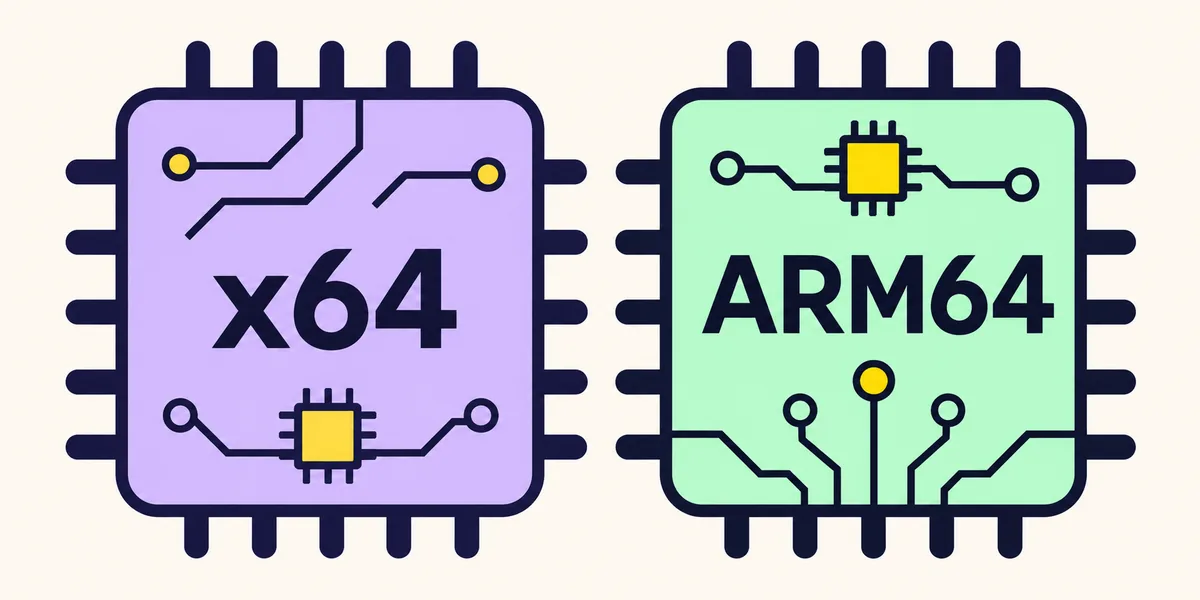
For an ElyPrismLauncher for Windows x64 download, choose x64 on a PC with an Intel or AMD processor. ARM64 is for Windows devices with an ARM processor. A computer's shape, age, or brand does not identify its processor family, so check Windows instead of guessing.
Open Settings, select System, then About. Find the System type or processor description. If it says an x64-based processor, choose the x64 asset. If it identifies an ARM-based processor and a 64-bit ARM operating system, choose ARM64. Windows may run some x64 applications through emulation on ARM, but an available native ARM64 build is the more direct match when the project publishes one.
Do not choose ARM64 because a PC is new, or assume every laptop is x64. A mismatch can fail to start even when the file came from the right project. If Settings is unclear, pause and confirm the processor type before downloading.
- Open Windows SettingsChoose System, then About. You can also search Windows Settings for About your PC.
- Read the system typeLook for an x64-based or ARM-based processor and confirm that Windows is 64-bit.
- Match the release assetSelect the x64 or ARM64 Windows entry on the official release page; do not choose by filename alone if the tag differs.
Choose the Windows installer or portable ZIP
The installer and portable package serve different workflows. An installer is usually easier when you want a normal desktop setup and shortcuts. A portable ZIP is useful when you want to extract the launcher into a folder you control, keep its files together, or test it without a traditional installation flow. Neither format is automatically safer: source, version, architecture, and the exact file still matter.
The release also lists a MinGW build. Most users can start with the MSVC option unless they have a specific compatibility reason to choose another variant. Decide on architecture first, then choose one package that fits your workflow.
For portable mode, choose a stable writable folder. A removable drive may receive a different letter later, while cloud-synced folders can conflict when files change on multiple devices. Back up existing data before moving it.
| Package | Good fit when | Before you continue |
|---|---|---|
| MSVC installer | You want the standard Windows setup and shortcuts | Confirm architecture and release tag |
| MSVC portable ZIP | You want a launcher folder in a location you control | Extract it to a writable, stable folder |
| MinGW build | You have a specific reason to use that build variant | Check the project notes and exact asset description |
Install or extract PineconeMC on Windows
Choose one official Windows asset that matches your system type and keep its original filename. Renaming a file neither fixes an architecture mismatch nor makes it easier to compare with the release page.
For the installer, follow the normal Windows prompts and decline unrelated download helpers. For portable mode, extract the ZIP into a stable writable folder and launch it there. Let PineconeMC create its data directory, open it once, add an account through the supported flow, and test a small vanilla instance before importing a large modpack. Back up worlds and instance folders before moving data.
- Use the cross-platform installation guide for Java and general first-launch details.
- Use the Ely.by account guide for the supported sign-in flow; do not share passwords with download sites.
- Select one matching assetMatch the release tag, architecture, and package type.
- Run or extract itFollow the installer prompts or extract the portable ZIP to a stable writable folder.
- Test before moving dataOpen the launcher and run one small vanilla instance before importing old files.
Check the Windows download before opening it
From the official repository, compare the release tag, platform, architecture, package variant, filename, and listed size with the saved file. A familiar icon or search result cannot establish a file's source.
If the release lists SHA-256, calculate the local file hash with PowerShell's Get-FileHash and compare it with the published value. A match shows the bytes are the same; it does not prove who created the release or guarantee that the program is safe for every system.
The Windows EXE response was not inspected, so its HTTP status, final URL, content type, and transferred size are unverified. If Windows Security warns you, check the source, file details, and any specific project report. Do not disable protection globally or install an unrelated helper; this guide cannot call every warning a false positive.
Troubleshoot common Windows download problems
If the download is much smaller than the size shown on the release page, or the browser labels it as an HTML document, remove the incomplete copy and download it again from the official release. Do not rename an HTML error page to .exe. If the link opens a web page instead of a file, check whether the release asset is still available and use the release page as the starting point.
If Windows says the application cannot run on your PC, recheck x64 versus ARM64 and confirm that the file belongs to the current release. Do not try to fix the message by disabling SmartScreen or antivirus protection. If the correct asset still fails, save the exact Windows message and check the project issue tracker before trying a different build variant.
If the launcher opens but Minecraft does not, check the selected version, Java runtime, loader, permissions, data directory, and first useful log entry. Change one setting at a time. The troubleshooting hub covers version lists, network errors, Modrinth, and instances.
- Incomplete or unusually small file: compare its size with the release page and download again from there.
- Windows blocks the file: check its source and filename, then review the security event without installing a helper.
- Wrong architecture: check Settings > System > About and select x64 or ARM64 to match.
- Launcher opens but a game fails: inspect the instance log, Java, loader, and data path.
Common questions
ElyPrismLauncher for Windows x64 FAQ
Which file should I choose for an ElyPrismLauncher for Windows x64 download?
For a typical Intel or AMD PC, start with the Windows x64 MSVC installer listed on the official release page. Choose the portable ZIP if you want to manage the extracted launcher folder yourself. Confirm the current tag and exact asset before opening the file.
How do I know whether Windows is x64 or ARM64?
Open Settings > System > About and read the system type or processor description. An x64-based processor normally uses the x64 build; a Windows-on-ARM device should use the ARM64 build when that asset is available. Do not guess from the laptop model or its age.
What is the current PineconeMC Windows release?
The latest-release endpoint was reported as version 11.1.2, published November 3, 2026, when checked on November 5. Use the official release page to confirm its asset list before downloading; this guide did not verify the Windows EXE response itself.
Should I disable Windows Defender if it blocks the download?
No. First confirm the official source, release tag, filename, and file type, then review the Windows Security event and the project's current issue reports. Do not turn off protection globally or install an unrelated helper. This guide cannot determine whether a warning on your device is a false positive.
Why does PineconeMC open while Minecraft will not start?
Check the instance version, Java runtime, loader, permissions, data directory, and first useful log line. Test a vanilla instance before adding mods or moving data.