
What multiplayer means in PineconeMC
The search phrase ElyPrismLauncher multiplayer usually describes a practical question: can the launcher start a Minecraft Java instance that joins friends, a LAN world or an online server? The answer is yes when the game instance itself is compatible. PineconeMC is the current project name for the launcher formerly known as ElyPrismLauncher, so the connection rules come from Minecraft Java, the selected loader, the installed mods and the server—not from the launcher name alone.
A launcher is the layer that stores accounts, downloads game files, selects Java, prepares an instance and starts Minecraft. The multiplayer session is a second layer. The server can require a particular Minecraft version, a mod loader, a mod list, a whitelist, a premium account or a specific network route. Treat those requirements as a checklist instead of reinstalling the launcher whenever a connection fails.
This guide focuses on joining or testing multiplayer from a legitimate, supported setup. It covers LAN, Direct Connect, ordinary server addresses and modded instances. It does not provide instructions for bypassing authentication, using cracked accounts, evading a server ban or hosting a public service without understanding its security and terms.
- PineconeMC starts the selected Minecraft Java instance; it does not change the server's rules.
- A clean vanilla test is the fastest way to separate a launcher problem from a mod or server problem.
- Keep the same version, loader and mod files on every computer before comparing network behavior.
Check the account, version and instance before connecting
Before you try to play with friends on Minecraft Java, open PineconeMC and inspect the instance you plan to use. Confirm the Minecraft version first, then check whether it is vanilla, Fabric, Forge, NeoForge or another loader. A server may show a generic disconnect message when the real mismatch is one loader version or one required mod.
Use the supported account flow for the account type required by the server. Do not paste a password, recovery code or access token into a third-party web form or a repacked launcher. If you need account help, use the site's Ely.by account guide and complete authentication inside the supported dialog.
Make a small vanilla instance your baseline. Launch it once, close it normally and then test the same server or LAN path. If vanilla works but a modded instance fails, keep the working instance unchanged and compare the loader, mods, configuration files, Java runtime and memory allocation one item at a time.
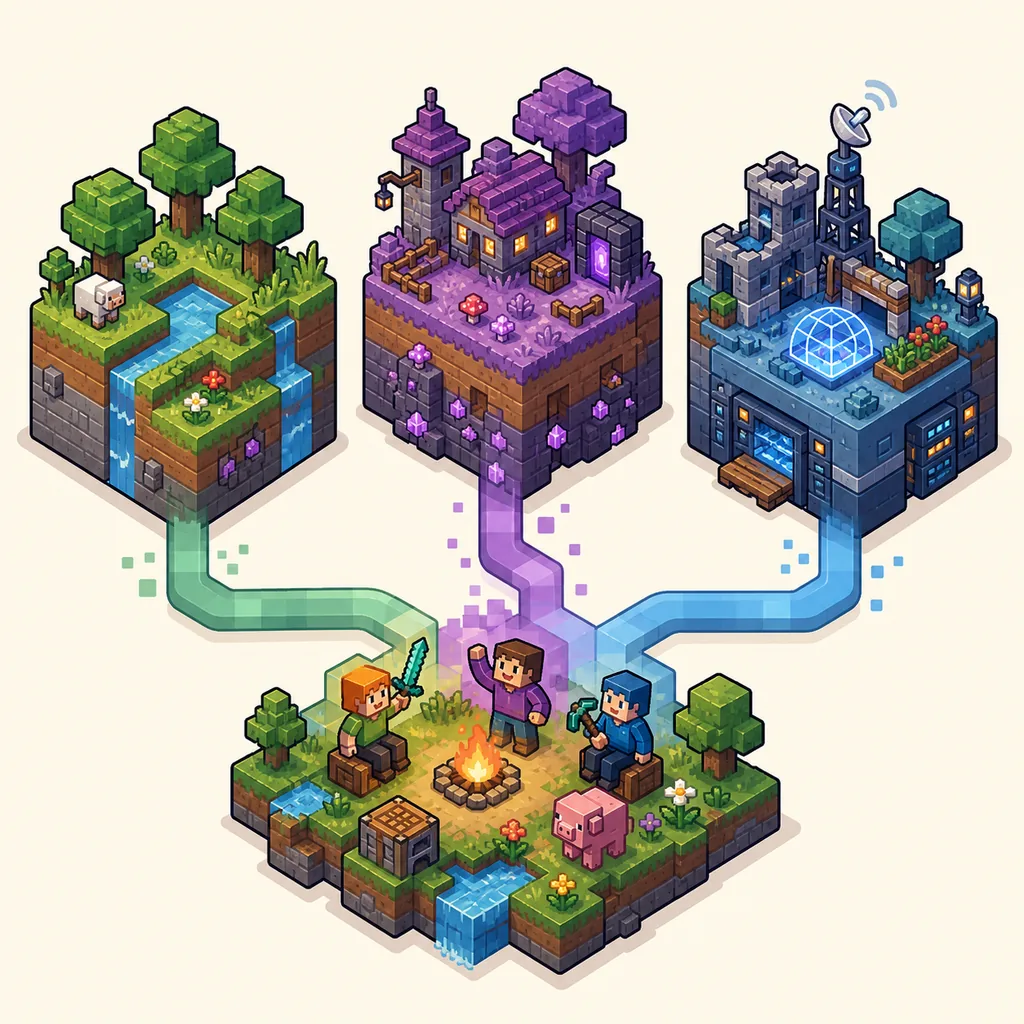
| Check | What must match | Why it matters |
|---|---|---|
| Minecraft version | The server or host's exact supported version | A nearby version number is not always compatible. |
| Loader | Vanilla, Fabric, Forge, NeoForge or the server's stated loader | The loader controls how the instance reads mods. |
| Mods and configs | Names, versions and sometimes configuration files | A missing or extra mod can stop the handshake. |
| Account and access | Supported account, whitelist or server permission | A working launcher window does not grant server access. |
How to use LAN or Direct Connect
LAN is usually the simplest way to test multiplayer when every player is on the same home network. The host opens a single-player world, chooses the in-game LAN option and keeps Minecraft running. Other players select Multiplayer and look for the LAN announcement. Because the launcher only starts the instance, the host's firewall and the network profile can still decide whether the world is visible.
Direct Connect is useful when the server list does not discover a local world or when a friend gives you a specific address. Enter the address exactly as provided. A local address, a public server hostname and a port written after a colon are different pieces of information; do not add or remove characters because the address looks unusual.
If LAN works but Direct Connect does not, the launcher is unlikely to be the only cause. Compare the address, port, firewall rule, router isolation setting and whether both computers are really on the same network. If neither path works, test a new vanilla instance before changing Java or downloading another launcher build.
- 1. Prepare the same instanceSelect the same Minecraft version and loader on each computer. For a first test, use a small vanilla instance with no extra resource or shader packs.
- 2. Let the host open the worldThe host starts the world and uses Minecraft's LAN option. Keep the game window open while other players search for the announcement.
- 3. Check local network accessConfirm that the computers are on the same network and that the operating system firewall allows Java or Minecraft to communicate on the intended private network.
- 4. Use Direct Connect when neededEnter the exact local address or hostname supplied by the host. If a port is included, keep the colon and port number unchanged.
- 5. Change one variable at a timeIf the test fails, record the message and log, then compare the address, firewall, version and instance files separately. Avoid changing all four at once.
How to join an online Minecraft Java server
For a public or private server, ask the administrator for the supported Minecraft version, server address, port, account requirement, whitelist status and modpack instructions. A server address is not automatically safe just because it appears in a video or a chat message. Prefer a source you can verify, and do not download an unknown launcher or executable just to join.
Create a dedicated instance in PineconeMC for the server instead of mixing its mods and settings into a world you already use. Give the instance a clear name, keep its game directory stable and make a backup before importing a large pack. If the server supplies a Modrinth or CurseForge pack, follow the pack's documented import path and then compare the resulting instance with the server's requirements.
When the instance is ready, launch it and open Minecraft's Multiplayer screen. Add the server or use Direct Connect. If the server rejects the connection, capture the exact message, the first useful log entry and the selected instance details. A message such as incompatible version, missing mods, invalid session, timed out or connection refused points to different next checks.
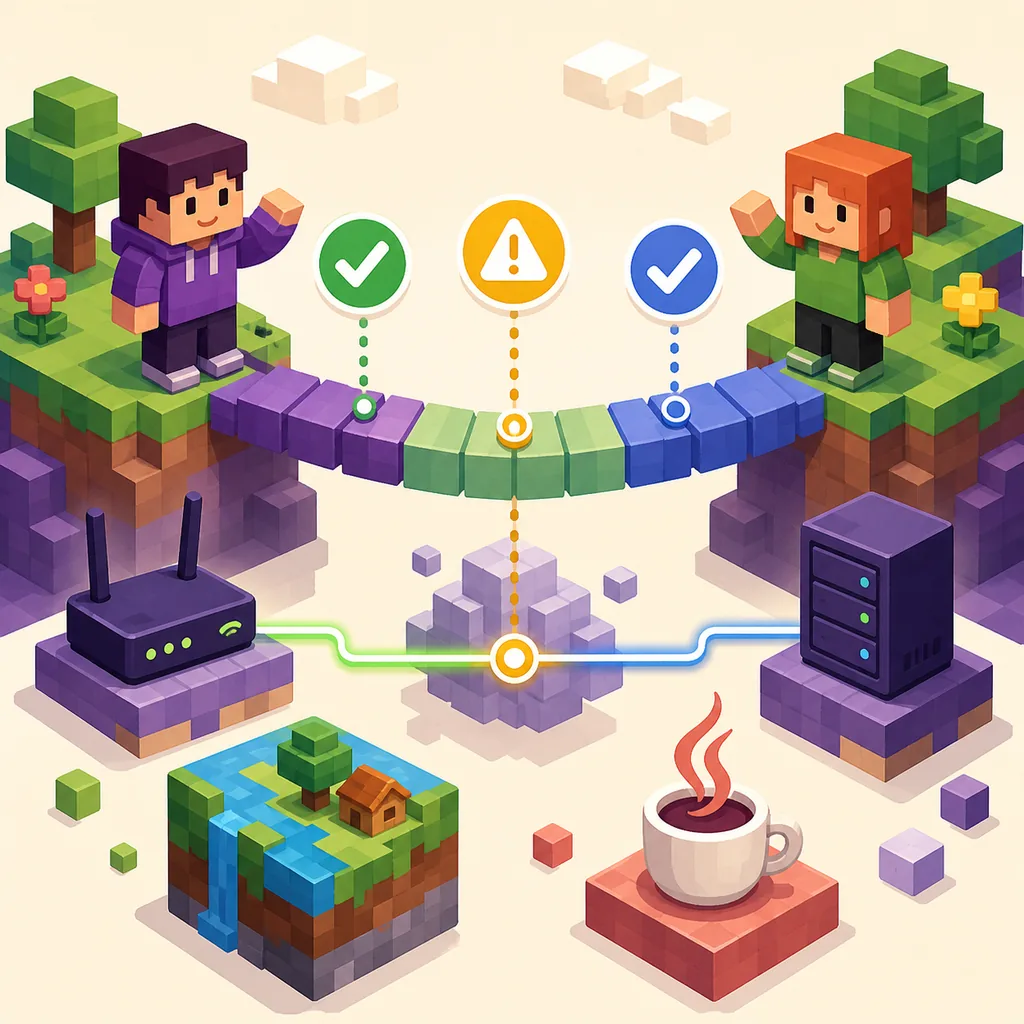
- 1. Record the server requirementsWrite down the address, port, supported game version, loader, modpack version and account or whitelist rules before importing anything.
- 2. Create a separate instanceUse a dedicated folder so that server mods, resource packs and configuration files do not overwrite a working single-player setup.
- 3. Import only trusted filesUse the server administrator's documented Modrinth, CurseForge or official release source. Do not run a random executable or paste credentials into a download page.
- 4. Join from MinecraftStart the matching instance, open Multiplayer and add the server or use Direct Connect with the exact address and port.
- 5. Preserve the evidenceIf the connection fails, keep the instance log and record the time, server address, version, loader and visible error before making another change.
Modded multiplayer: match the whole instance, not just the game version
Modded multiplayer is where many apparently random disconnects begin. Two players can select Minecraft 1.x and still fail because one uses Fabric while the other uses Forge, because a mod has a different build, or because a configuration file changes the required handshake. Compare the actual instance contents rather than only the version shown in the launcher list.
If a modpack import creates a profile automatically, read its manifest and keep the generated instance separate. Do not add OptiFine, Iris, shaders or performance mods to a server profile until you know that the server allows them. Client-only visual mods can sometimes work, but a server-side mod list is authoritative for anything that changes gameplay or networking.
Use a repeatable test: first launch the imported pack without changing it, then join the server once. If that works, add optional client changes one at a time. If it fails immediately, compare the loader version, Java version, required dependencies, memory setting and the first `Caused by` line in the log.
| Symptom | Likely boundary | Next useful check |
|---|---|---|
| Incompatible version | Minecraft or loader mismatch | Compare the exact server version and loader build. |
| Missing mod or dependency | Instance file set differs | Re-import the documented pack and compare the manifest. |
| Works vanilla, fails modded | Mod, config, Java or memory change | Keep vanilla as a baseline and add one change at a time. |
| Players see different worlds | Wrong instance or game directory | Open the instance folder and confirm the selected profile. |
Troubleshoot multiplayer connection failures in order
Start with the exact failure stage. If the server is not visible, investigate discovery, firewall and network address. If it is visible but refuses the join, compare version, loader, mods, account and whitelist. If the game joins and then times out, look at the server status, latency, proxy, firewall and the first log entries after disconnect. Do not treat every message as a download problem.
On Windows, check the private-network firewall permission for Java or Minecraft and confirm that a security product did not quarantine the launcher or a required library. On macOS and Linux, check application permissions, executable bits, system firewall rules and whether the selected data directory is writable. For any platform, verify the system clock and the selected Java runtime when authentication or TLS messages appear.
If the launcher itself cannot load versions, accounts or metadata, use the existing version-list and Network Error guides before diagnosing the server. If Minecraft starts but only one instance fails, use the instance log and compare it with the clean baseline. Preserve the first meaningful error rather than copying the final generic disconnect line.
- Server not listed: verify the address, port, LAN network and firewall discovery.
- Incompatible version: match the exact Minecraft version and loader, not only the major release.
- Missing mod: re-import the server's documented pack and compare dependencies.
- Invalid session or account error: sign in through the supported account flow and avoid third-party credential forms.
- Timed out or refused: test another network or a clean vanilla instance, then compare firewall and proxy behavior.
- Crash after joining: inspect Java, memory, client mods, shader packs and the first `Caused by` entry.
Safe boundaries for multiplayer setup
A multiplayer guide should help you identify the correct source and the correct instance, not encourage risky downloads. Use the official PineconeMC release page for the launcher, the server administrator's documented pack source for server files and the supported account provider for login. Keep filenames, release tags and URLs so you can explain what was installed if something goes wrong.
Do not disable antivirus protection as a first step, do not run a repacked launcher because a server demands it, and do not enter an Ely.by or Microsoft password into a page that is not the supported login flow. A warning may be a false positive, but it still deserves source and file verification. The site's safety guide explains how to check provenance without promising that every build is risk-free.
For a small private session, start with a clean instance, test the connection, then add the minimum changes required by the server. This gives every player a shared baseline and makes later troubleshooting much faster. If the server's rules, files or account requirements are unclear, ask the administrator before changing your launcher or operating-system security settings.
Practical summary
A repeatable multiplayer workflow
The most reliable way to play Minecraft multiplayer in ElyPrismLauncher is to keep the layers separate. PineconeMC handles the launcher, account selection, Java choice, instance folder and game start. Minecraft handles the Multiplayer screen and the connection handshake. The server or LAN host controls the address, supported version, loader, mods, whitelist and network rules.
Start with one supported account and one clean instance. Match the Minecraft version, choose the correct loader, import only the required files and test the connection before adding optional shaders or performance changes. When something fails, save the visible message and the first useful log line, then compare one variable at a time with the known-good baseline.
That workflow covers the common intent behind ElyPrismLauncher multiplayer, PineconeMC multiplayer and how to play with friends on Minecraft Java without turning a launcher help page into an unverified server directory.
- Use a separate instance for each modded server.
- Keep the verified release source and server instructions together.
- Do not use cracked-account or credential-bypass instructions as a troubleshooting step.
Common questions
Minecraft multiplayer FAQ
Can I play multiplayer with PineconeMC?
Yes. PineconeMC starts Minecraft Java instances, so you can use LAN, Direct Connect or an online server when the account, version, loader, mods and network requirements match.
Does PineconeMC create a multiplayer server for me?
No. The launcher prepares and starts the client instance. Hosting a server is a separate task with its own software, port, firewall, security and administration requirements.
Why does vanilla work but my modpack cannot join?
The modded instance may use a different loader, mod build, dependency, configuration, Java runtime or memory setting. Keep vanilla as a baseline and compare the imported manifest and the first useful log entry.
Can I use a server address with Direct Connect?
Yes, when the server administrator provides a valid address and port. Enter it exactly as supplied and confirm that the selected instance matches the server's supported version and loader.
Why can my friend see the LAN world but I cannot?
Check that both computers use the same private network, that the host's firewall permits Java or Minecraft, and that both players started compatible instances. A VPN or router client-isolation setting can also block discovery.
Should I download a special launcher to join a server?
Usually no. Use the verified PineconeMC release and the server's documented modpack or resource source. Do not install an unknown repack or provide credentials to a page just because a server message recommends it.