
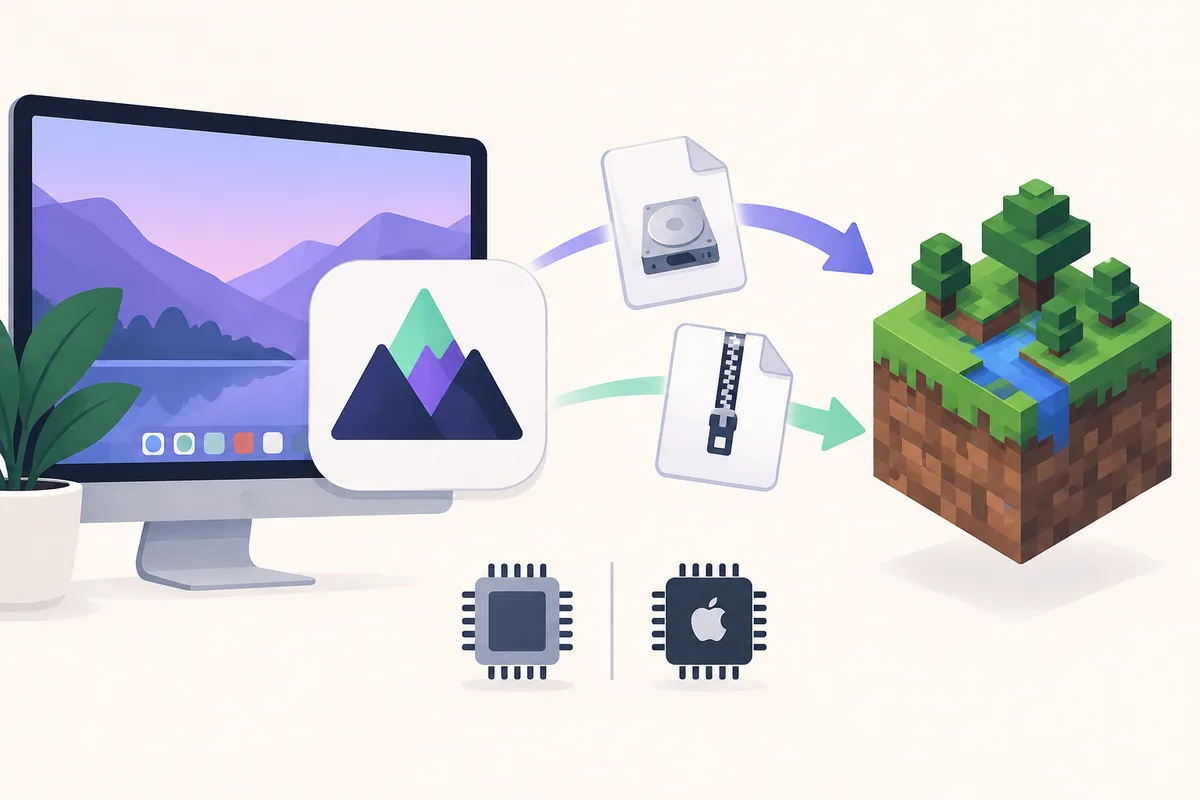
What to check before an elyprismlauncher macos download
The phrase “elyprismlauncher macos download” describes a specific task: finding the macOS build, selecting the right package, and getting from the download to a working Minecraft launcher. PineconeMC is the current project name, while ElyPrismLauncher remains the useful search name. Keeping both names visible helps you match older instructions to the current release page.
The release record used for this page is PineconeMC 11.1.0, published September 4, 2026. It was checked against the official GitHub Releases API on September 15, 2026. The two end-user macOS assets are a DMG disk image and a ZIP archive. Their filenames, sizes and SHA-256 digests are release metadata, not values guessed from a CDN naming pattern.
Before opening a file, compare the host, release tag, filename and extension. A page that says “Mac download” is not enough if it redirects to an unknown mirror or presents a repacked installer. This independent guide does not host the application, collect Apple, Microsoft or Ely.by passwords, or promise that a file is safe on every device.
- Confirm that the address is the official ElyPrismLauncher/PineconeMC GitHub Release.
- Match the release tag and filename before opening the DMG or ZIP.
- Back up worlds, instances and settings before changing the application path.
- Keep the original download and its release notes available for rollback.
| Release fact | Checked value |
|---|---|
| Project name | PineconeMC, formerly ElyPrismLauncher |
| Release | 11.1.0 · published September 4, 2026 |
| macOS assets | DMG and ZIP · Intel and Apple silicon |
| Metadata source | Official GitHub Releases API, checked September 15, 2026 |
Check whether your Mac uses Intel or Apple silicon
The current macOS release assets are presented for Intel and Apple silicon Macs. You normally do not need to invent a special filename or search for a third-party universal build. First open Apple menu → About This Mac and read the chip or processor line. “Chip” identifies Apple silicon; “Processor” with Intel branding identifies an Intel Mac.
This check matters even when two files look similar. Choosing a package from an unverified mirror can introduce a different build, a stale release or a bundled installer. The official 11.1.0 macOS filenames are explicit: PineconeMC-macOS-11.1.0.dmg and PineconeMC-macOS-11.1.0.zip.
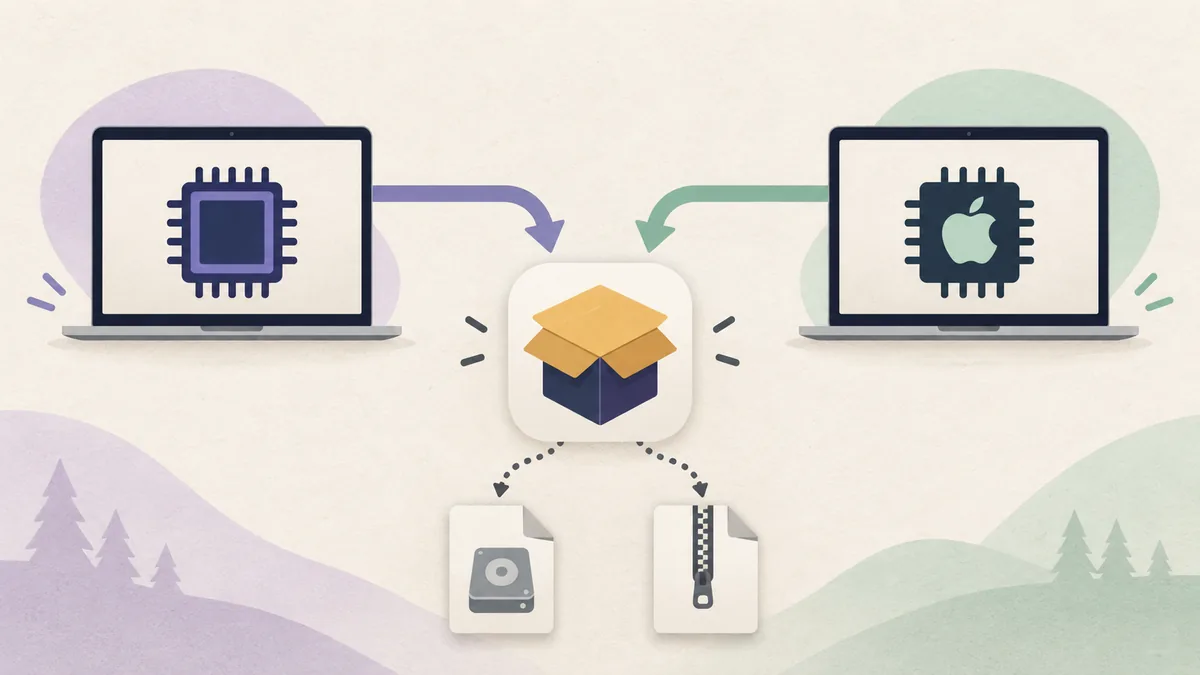
- Open About This MacUse the Apple menu and read the hardware line without relying on a guess based on the Mac’s age.
- Record the chip familyWrite down Intel or Apple silicon in your setup notes so a later reinstall uses the same decision.
- Return to the release pageConfirm the 11.1.0 tag and select one of the official macOS assets rather than a renamed mirror file.
Choose the DMG or ZIP for the macOS download
For most first-time users, the DMG is the clearer route. It opens as a disk image and normally makes it straightforward to move the launcher into Applications. The ZIP is useful when you prefer to extract files yourself, keep a portable copy for testing, or avoid treating the download as a mounted disk image. Neither format changes your Minecraft instances by itself.
For the checked 11.1.0 release, the DMG is 44,658,946 bytes and the ZIP is 42,941,907 bytes. The corresponding release digests are recorded below so you can compare a local verification result with the official metadata. A digest mismatch is a stop sign: download again from the official release page and do not open the file until the source is clear.
| Asset | Published size | SHA-256 digest |
|---|---|---|
| DMG | 42.6 MB · 44,658,946 bytes | 5524845b4dfd0aef90946eeeb213098ab356690d28a1142c010ff656bdd92f73 |
| ZIP | 41.0 MB · 42,941,907 bytes | aae4ea1611de0a53c9b30d1be11c978b302fcfb4a59da27db36ee8718b8d1602 |
How to install PineconeMC on macOS
After the elyprismlauncher macos download finishes, keep the file in Downloads until you have checked its name and source. The first launch should be deliberately simple: install the application, choose a writable data location, and create a small vanilla instance before importing a large modpack. This makes it easier to tell whether a prompt is about macOS permissions or Minecraft configuration.
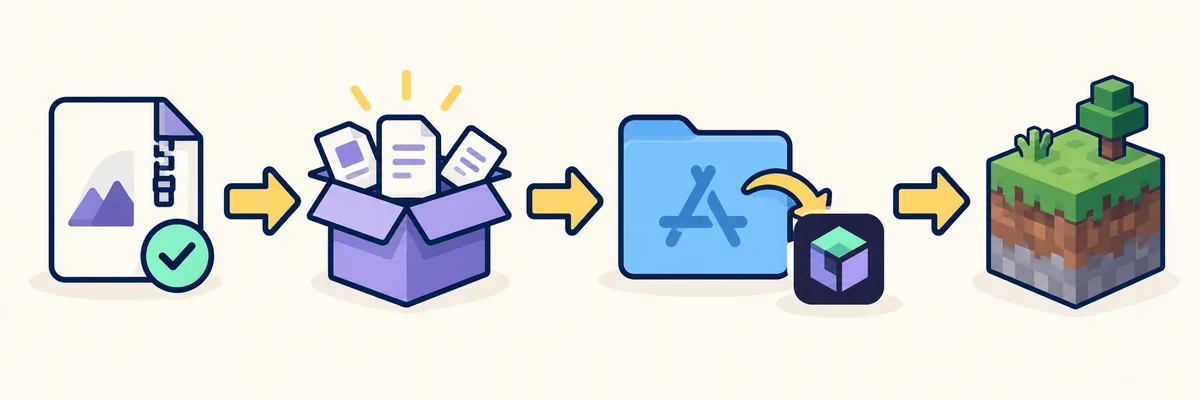
- Open the packageDouble-click the DMG and use the normal application window, or extract the ZIP into a temporary folder you control.
- Move the launcherFor a normal installation, move PineconeMC into Applications. Keep one copy in one predictable location instead of launching several duplicate copies.
- Respond to the first permission promptIf macOS asks whether to open an application downloaded from the internet, verify the source and use the system prompt rather than bypassing it with an unknown helper.
- Choose the data pathUse a writable folder and note its location. Do not delete an existing instance directory while you are still diagnosing the first launch.
- Create a small test instanceSelect a known Minecraft version, use the compatible Java and loader choices, and launch once before importing mods, shaders or a large world.
Complete the first launch without losing your setup
A successful application launch is only the first checkpoint. Open the launcher, confirm that the version list loads, and check whether the account dialog appears through the supported flow. If the list is empty or a service request fails, save the visible message and the first useful log entry before changing network, cache or account settings.
If macOS blocks the application, separate a source warning from a normal permission prompt. Confirm that the file came from the official release, try opening the application from Applications, and review the system’s Privacy & Security message. Do not install a second “fixer” application from a pop-up or paste credentials into a web form.
- Test a vanilla instance before adding mods or shaders.
- Keep the exact release tag and asset filename in your notes.
- Back up worlds and instance folders before moving data.
- Use the general installation guide for Java and instance details.
- Use the Ely.by account guide for the supported account flow.
Fix a blocked, incomplete or confusing macOS download
If the download does not start, check the URL and return to the official 11.1.0 release page. If it starts but the file is much smaller than the published size, treat it as incomplete. If the browser reports a network or security error, record the message, check the system clock and try a trusted network without disabling security controls permanently.
If the launcher starts but Minecraft does not, the download is probably no longer the main problem. Check the instance log, Minecraft version, Java runtime, loader and mod dependencies. The troubleshooting hub routes missing-version, network, Modrinth and instance symptoms to separate checks.
Practical summary
A repeatable checklist for ElyPrismLauncher macOS download
A good macOS download workflow is easy to repeat. Start with the official project identity: PineconeMC is the current name, ElyPrismLauncher is the older search term, and the official source is the project’s GitHub Release. Then write down the release tag before clicking. This small note prevents an old tutorial or search snippet from silently selecting a different build.
- Source first, architecture second, format third, instance last.
- Use the release page as the authority when old instructions disagree.
- Keep backups and a rollback path while the new build is being tested.
Common questions
ElyPrismLauncher macOS download FAQ
What is the current PineconeMC macOS release checked on this page?
This page records PineconeMC 11.1.0, published September 4, 2026 and checked against the official GitHub Releases API on September 15, 2026. Recheck the official release page before relying on a later latest-version claim.
Should I choose the DMG or ZIP for macOS?
Choose the DMG for the usual mounted-disk and Applications workflow. Choose the ZIP when you prefer manual extraction, a controlled test folder or an archive copy. Both are official macOS assets in the checked 11.1.0 release.
Does PineconeMC support Intel and Apple silicon Macs?
The checked release lists macOS DMG and ZIP assets with an Intel and Apple silicon platform label. Confirm your chip in About This Mac, then match the official filename and release tag instead of downloading a renamed mirror file.
What should I do if macOS blocks the application?
First confirm the file source, release tag and filename. Try the verified application from Applications and read the macOS Privacy & Security message. Do not install an unknown helper or enter credentials into a pop-up that promises to unlock the launcher.
Why does the launcher open but Minecraft still fail?
Separate the download from the instance. Check the Minecraft version, Java runtime, loader, mod dependencies, data path and first useful log entry. A successful launcher installation does not automatically make an old modpack compatible.
Where should I download the macOS files?
Use the official PineconeMC 11.1.0 GitHub Release linked in this guide. Match the expected DMG or ZIP filename and release tag. If a mirror changes those facts or bundles another installer, do not use it.