
What ElyPrismLauncher themes actually change
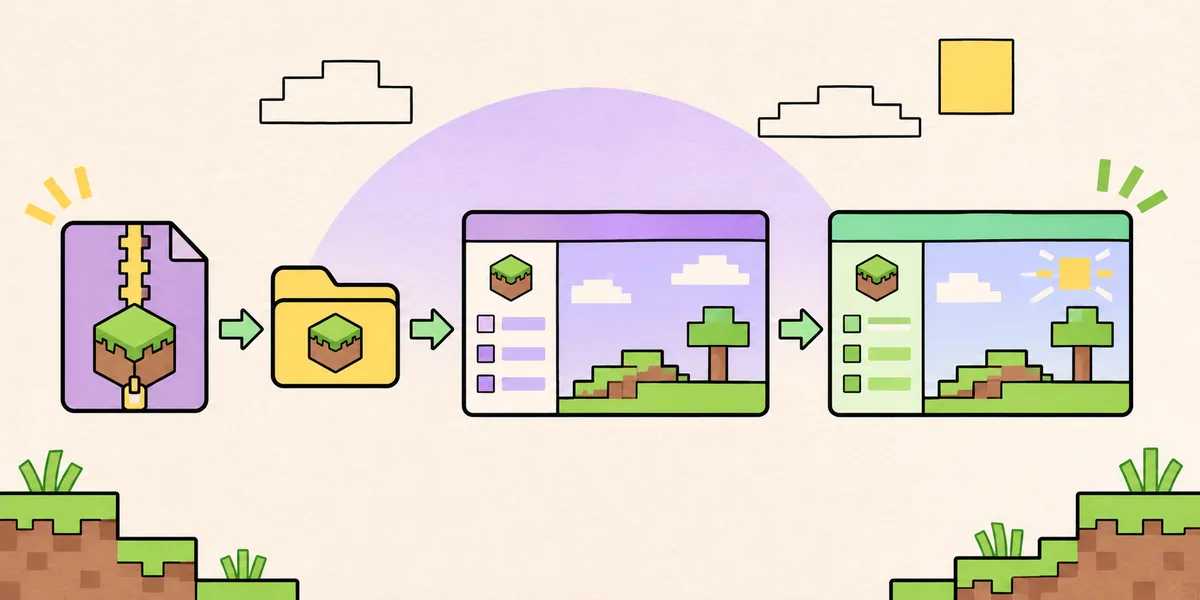
ElyPrismLauncher themes change the appearance of the launcher itself: widget colors, panels, buttons, lists and other interface surfaces. PineconeMC is the current project name used by the launcher formerly known as ElyPrismLauncher, so an older guide may use both names. A theme does not change the textures inside Minecraft, the blocks in a world, the shaders used by a renderer or the mods loaded by an instance. Those tasks belong to resource packs, shader packs and modpack guides.
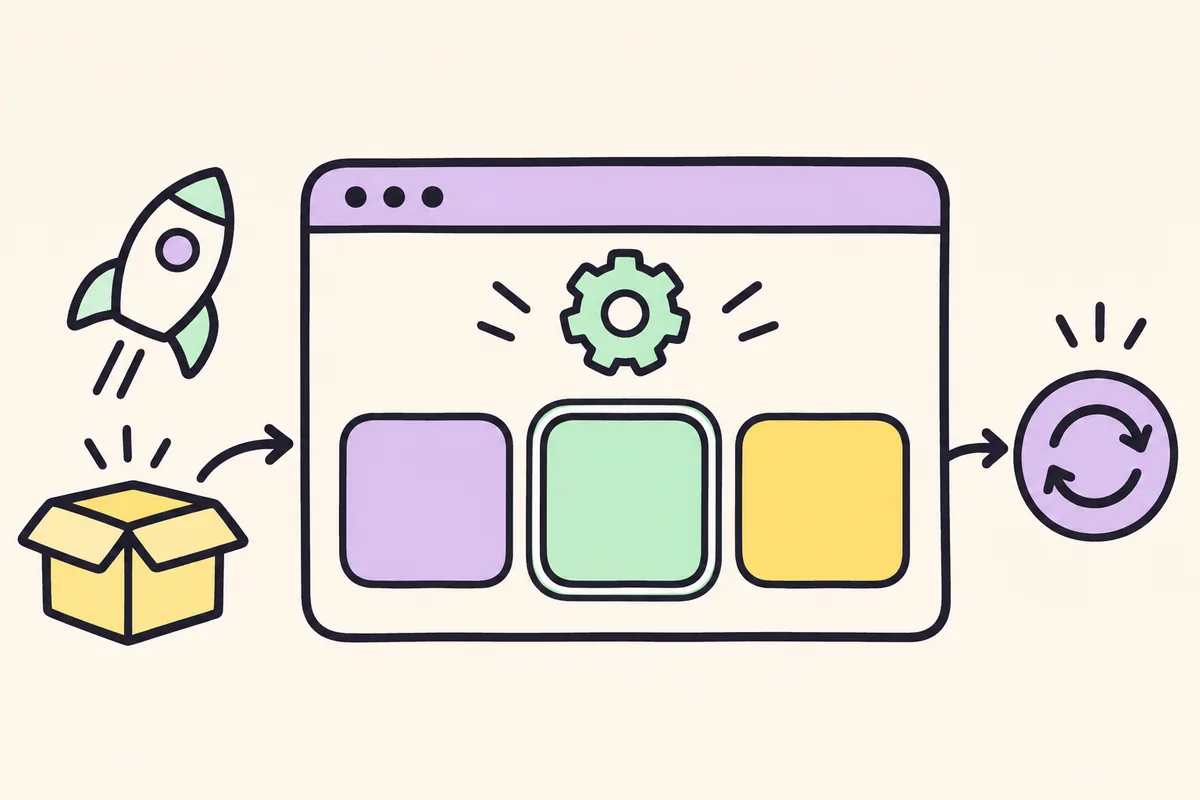
The phrase Prism Launcher themes is common in search results because PineconeMC is a related fork. That does not mean every theme is tested by the PineconeMC team. Treat the repository, release tag and archive structure as separate facts. A theme normally arrives as a ZIP that contains a theme folder and a theme.json file. An icon pack is a different archive with its own index.theme file and folder. Keeping those two workflows separate prevents a valid icon pack from being placed in the widget theme directory.
| Package | Changes | Expected checkpoint |
|---|---|---|
| Widget theme | Launcher colors, controls and panels | theme-name/theme.json inside themes |
| Icon pack | Instance, account and launcher icons | icon-name/index.theme inside iconthemes |
| Minecraft resource pack | In-game textures and sounds | Installed inside a Minecraft instance |
| Shader pack | In-game lighting and rendering | Enabled by a compatible renderer |
Choose a theme source and back up first
Start with the official Prism Themes repository or a project page that clearly identifies the author, archive name and release history. The official Change Themes documentation lists theme and icon pack downloads, but the page can change as projects publish new assets. Follow the download link to the source repository rather than copying a ZIP from an ad, a file host or a random tutorial. A familiar name in a filename is not proof that the archive is safe or compatible.
Before changing the launcher appearance, close Minecraft and copy the PineconeMC data directory or at least the configuration files you cannot recreate. A theme should not alter worlds or instance saves, but a backup gives you a clean recovery path if an archive is malformed or you accidentally overwrite a folder. Keep the original ZIP and note the theme name, source URL and date. This is especially useful when comparing a PineconeMC release with a Prism Launcher guide that describes a different menu layout.
Install a theme on Windows, macOS, Linux or Flatpak
The reliable method is to open the directory from PineconeMC instead of guessing a path. The menu knows whether you use a normal installation or a sandboxed Flatpak. Download the theme ZIP, keep it outside the launcher while you work, and use the directory listed below only after the launcher is closed. If the documentation for a particular theme says to keep the ZIP compressed, follow that project instruction; otherwise the normal layout is an extracted folder containing theme.json.
After extraction, inspect the folder one level at a time. The launcher should be able to find themes/your_theme_name/theme.json, not themes/theme.json and not themes/your_theme_name/another-folder/theme.json. Extra nesting is the most common reason a theme appears to install successfully but does not show in the Widgets list.
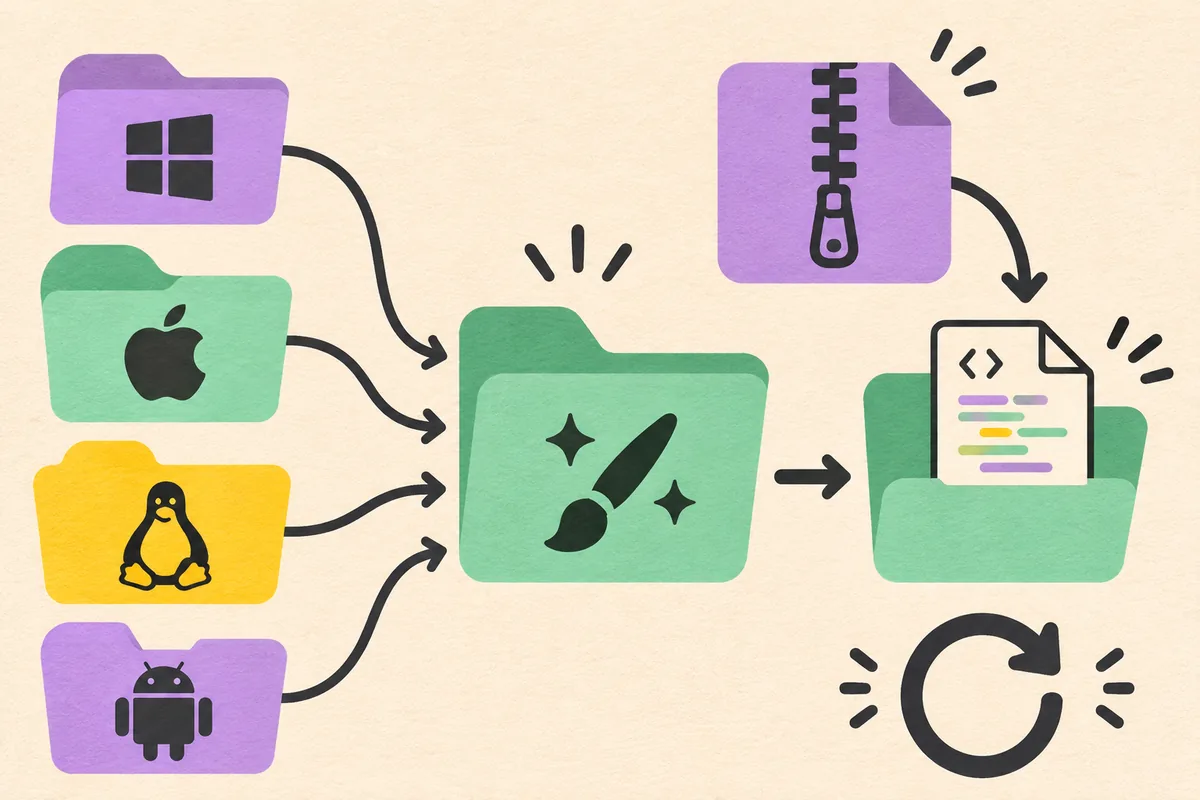
- Close the launcherExit PineconeMC completely so it is not rewriting the themes directory while you copy files.
- Open Widget ThemesLaunch PineconeMC, select Folders, choose Widget Themes, then close the launcher again before extracting the archive.
- Extract the ZIPPlace the theme folder in the directory. Confirm that theme.json is directly inside that folder and is not hidden in a second nested directory.
- Keep a clean copyRetain the original ZIP and record the folder name. Do not replace a working theme until the new archive is visible in the launcher.
- Restart and selectOpen PineconeMC, go to Global Settings, open User Interface in the Launcher section, choose the theme under Widgets and click Close.
| Environment | Themes directory | How to open it |
|---|---|---|
| Any OS | The launcher-selected themes folder | Folders > Widget Themes |
| Windows | %appdata%\\PrismLauncher\\themes | Open from Folders when possible |
| macOS | ~/Library/Application Support/PrismLauncher/themes | Open from Folders when possible |
| Linux | ~/.local/share/PrismLauncher/themes | Open from Folders when possible |
| Flatpak | ~/.var/app/org.prismlauncher.PrismLauncher/data/PrismLauncher/themes | Use the sandbox-aware Folders entry |
Install icon packs separately
Icon themes use a different folder and a different setting. The official instructions open the launcher directory through Folders > Icon Theme. On Windows this is normally %appdata%\\PrismLauncher; on macOS it is ~/Library/Application Support/PrismLauncher; on Linux it is ~/.local/share/PrismLauncher; and a Flatpak build uses ~/.var/app/org.prismlauncher.PrismLauncher/data/PrismLauncher. These are launcher data locations, not the themes subdirectory.
Create an iconthemes folder when it does not exist, then extract the icon pack so the structure looks like iconthemes/your_icon_pack/index.theme. Do not put index.theme in the themes folder and do not rename it to theme.json. Restart PineconeMC, open Global Settings, select User Interface, choose Custom icons under Icons and click Close. If the icon pack is not listed, check the folder depth before downloading another copy.
- Open the launcher directoryUse Folders > Icon Theme so the path matches your installation type.
- Create iconthemesAdd the folder beside the normal launcher data folders if it is missing.
- Extract the packKeep index.theme one level below the icon pack folder and preserve the archive's file names.
- Restart and applySelect Custom icons in Global Settings > User Interface, then close the dialog and inspect the main window.
| Item | Folder | Setting after restart |
|---|---|---|
| Widget theme | themes/theme-name/theme.json | Launcher > Widgets |
| Icon pack | iconthemes/icon-name/index.theme | Icons > Custom icons |
Enable, test and roll back a theme
A successful installation has a visible result: the new name appears under Widgets or Custom icons, the launcher redraws after you close settings, and the main controls remain readable. Test the home window, instance list, account area and settings dialog. A palette that looks attractive in one panel can make disabled text or warning states hard to read elsewhere. If the theme adds a dark background, confirm that text, focus outlines and error messages still have sufficient contrast.
If PineconeMC starts with a broken layout, return to Global Settings and select the default widget theme or default icons. If the settings window is unusable, close the launcher, move the new theme folder or icon pack out of the directory, then start the launcher again. Do not delete the backup or original archive until the default appearance and one test instance work normally.
- Check the Widgets list and the Icons list separately.
- Open a small test instance before moving a large modpack collection.
- Verify focus outlines, disabled labels and warning colors, not only the main background.
- Keep one known-good theme folder available for recovery.
- Remove one new archive at a time so the cause of a failure stays clear.
Check PineconeMC compatibility and version boundaries
PineconeMC is a Prism Launcher fork with its own releases and branding. A theme written for Prism Launcher may work because the applications share interface concepts, but compatibility is not guaranteed by the family name. Check the theme repository's release notes, required launcher version and open issues. A theme that relies on a widget renamed upstream can fail silently or leave one panel unstyled.
The official GitHub release API checked for this guide lists PineconeMC 11.1.2, published on November 3, 2026. The repository contains Windows, macOS and Linux assets, but this page does not turn that release fact into a promise that every theme supports it. Keep version claims near the source date and recheck the release page before relying on a newer or older archive.
If a tutorial still says ElyPrismLauncher, read the steps for the menu action rather than copying its download links blindly. The current application name is PineconeMC, while the former name remains useful for finding older documentation. Keep the exact project and theme repository visible in your notes so a future update does not mix a Prism Launcher archive with a PineconeMC data directory.
| Question | Evidence to check |
|---|---|
| Which launcher? | PineconeMC release notes or the theme project's compatibility note |
| Which folder? | The Folders menu in the installed build |
| Which archive? | Repository release asset, checksum or documented file layout |
| Which version? | Theme release requirement compared with the current launcher tag |
Troubleshoot a theme that does not appear
Start with the simplest evidence: the archive exists, the launcher is closed during extraction, the folder is in the directory opened by PineconeMC and the required file is at the expected depth. If a theme is missing from Widgets, look for theme.json. If an icon pack is missing from Custom icons, look for index.theme. A ZIP that contains only screenshots, a README or another ZIP is not a complete installed theme.
Next, remove variables. Move every newly added theme except one, restart the launcher and test the remaining archive. If the default theme works but the new one does not, the issue is likely archive structure or compatibility. If the launcher itself fails, restore the backup folder and use the launcher release page or the instance troubleshooting guide rather than repeatedly changing paths.
Do not use a random executable to install a theme. Themes and icon packs are data archives; an unknown installer is outside the normal workflow. When reporting a problem, include the PineconeMC version, operating system, installation type, theme release URL, folder tree and first visible error. That evidence is more useful than a screenshot of a generic missing-theme message.
- Theme missing: confirm themes/theme-name/theme.json.
- Icons missing: confirm iconthemes/icon-name/index.theme.
- Flatpak path wrong: reopen the folder through the sandbox-aware menu.
- Broken appearance: remove the new folder and select the default style.
- Unknown installer: stop and return to the official repository.
Practical summary
A dependable ElyPrismLauncher themes checklist
A dependable ElyPrismLauncher themes workflow treats the source, archive structure, launcher folder and settings choice as four separate checkpoints. First identify the project and release. Then open the folder from PineconeMC, extract one archive and inspect the required file. Finally restart the launcher and verify the result in the correct settings group. This method is slower than dropping files into a guessed directory, but it gives you a clear explanation when the theme does not appear.
Remember that a widget theme changes PineconeMC's interface while an icon pack changes the symbols used for instances and accounts. The terms are related, yet the folders are not interchangeable. A theme.json file belongs in the themes tree; an index.theme file belongs in iconthemes. Keeping the files in their expected location also makes rollback simple because you can move one named folder without touching worlds, saves or mod files.
Before experimenting with several Prism Launcher themes, keep one clean theme and a copy of your launcher data. Apply one archive at a time and test settings, instance lists, account controls and warning states. If the design is unreadable or a widget remains blank, restore the default and compare the theme release notes with your PineconeMC version. A careful baseline prevents a visual customization problem from becoming an instance recovery problem.
- Use a named, traceable source for every archive.
- Keep widget themes and icon packs in their own folders.
- Test one theme before installing a collection.
Implementation notes
Record the evidence behind a custom theme
When a custom theme for Prism Launcher behaves differently from a screenshot, record the exact archive URL and release tag. Theme repositories can update a ZIP without changing the name shown in a tutorial, and a fork can expose a slightly different widget set. A short note with the launcher tag, operating system, installation type and folder tree lets you reproduce the test later.
A good compatibility check starts with the default appearance. Open the launcher once with no new theme, confirm that a small instance starts and note the current settings. Add the archive, restart and check the same screens. If only one panel changes or text becomes unreadable, remove the archive and report the first visible difference. Avoid adding a second theme while the first result is unclear.
The same evidence helps when a theme update is released. Keep the old folder outside the active directory, read the new release notes, and test the updated archive in a copy of the configuration. PineconeMC's release page is the authority for launcher versions; the theme repository is the authority for theme files. Neither page should be replaced by a repacked download mirror.
- Write down the release tag and operating system.
- Compare the same screens before and after applying a theme.
- Keep the old archive until the replacement passes.
Last checks
Finish an ElyPrismLauncher themes install with a rollback path
After an ElyPrismLauncher themes install, close and reopen the launcher once more. Check that the chosen widget theme or custom icon pack remains selected and that the settings dialog, instance list and account area are readable. Keep the default option available; a theme is successful only when it improves the daily workflow without hiding states that matter during troubleshooting.
If you later switch between themes, move the old folder rather than deleting it immediately. This preserves a known-good baseline and makes it easy to identify which archive introduced a problem. Do not copy a theme folder into a Minecraft instance or a shaderpacks directory. Those locations belong to different systems and can make a clean launcher look broken when the real issue is a misplaced file.
Use the official theme reference for current paths, the PineconeMC release page for current launcher facts and this guide for the sequence that connects them. When the project changes a menu label or folder location, update the source note and recheck the archive layout instead of guessing from an older video.
- Confirm the style after a full restart.
- Keep a default theme and a backup outside the active folder.
- Recheck official paths after launcher updates.
Common questions
ElyPrismLauncher themes FAQ
Are Prism Launcher themes compatible with PineconeMC?
Some themes may work because PineconeMC is a Prism Launcher fork, but compatibility is not automatic. Check the theme release notes, required launcher version and folder structure, then test one archive before installing more.
Where is the ElyPrismLauncher themes folder?
Open PineconeMC and choose Folders > Widget Themes. Common paths are %appdata%\\PrismLauncher\\themes on Windows, ~/Library/Application Support/PrismLauncher/themes on macOS, ~/.local/share/PrismLauncher/themes on Linux and the org.prismlauncher Flatpak data path.
Why does my theme not appear under Widgets?
Check that the launcher was restarted and that the folder contains theme-name/theme.json rather than an extra nested directory. Reopen the folder from the launcher and test the default style before trying another archive.
How do I install a PineconeMC icon theme?
Open Folders > Icon Theme, create iconthemes if needed, extract the pack so icon-name/index.theme is present, restart PineconeMC and choose Custom icons under Global Settings > User Interface.
Can a theme change my Minecraft textures?
No. A launcher widget theme changes the PineconeMC interface. Minecraft textures use resource packs, while lighting effects use shader packs. Keep those files in their own instance locations.
What should I do if a theme breaks the launcher?
Close PineconeMC, move the new theme or icon folder out of the data directory, restart and select the default style. Keep the archive and backup so you can report the version, source and folder structure.
What is the current PineconeMC release mentioned here?
The official GitHub API check for this guide returned PineconeMC 11.1.2, published November 3, 2026. Recheck the official release page before relying on a newer version or a theme compatibility claim.